
What's new
Qwilr is helping you create beautiful business documents—and we hope these updates help your team do just that.
🎉
New and noteworthy
The new Block Library Sidebar houses all of your saved blocks and allows you to build Qwilr pages faster than ever before.
Simply click and drag a saved block from the Sidebar into your page to add it to your page.

Monthly roundup
February 2021
— Introducing: Block Library Sidebar ✨
The new Block Library Sidebar is accessible from within the editor — it houses all of your saved blocks and allows you to build Qwilr pages faster than ever before. Simply click and drag a saved block from the Sidebar into your page to add it to your page.

- Block controls: Moving blocks up and down is now easier and more accessible. Plus, the new "Clone block" button allows you to duplicate a block immediately.
- Folders drop-down menu: Added a drop-down menu for folders to simplify the way you work with folders.
November 2020
— Announcing: Compact PDF download!

- Compact PDF download comes with better page break rules, so your documents are shorter and your blocks and pages are smartly spaced out for a more polished presentation.
- Updated download option controls for easier navigation and improved UI contrast for better readability.

Plus:
- Font scaling: Fonts that previously displayed as abnormally large in downloads have been downsized.
- Quote Block overflow: Now, column headers follow Quote Block sections over multiple pages.
October 2020
— Updates to the saved block library
- Access and manage Saved Blocks from the Dashboard 🗃
The Saved Block Library is now accessible from the Dashboard — You can now search, create and edit Saved Blocks via the "Blocks" link in the navigation bar. Learn more →

- Menu clarity: "Insights" has been renamed to "Analytics" in the Dashboard.
June 2020
— folders and more 🗂
- Folders: File and find your pages easily with folders! Now you can create folders and nested folders, then drag your pages into them to organize your Dashboard. Learn more →

- Image search: You can now search your uploads and rename images so they’re even easier to find.
- Template deletion: Get rid of all the pages you don’t use for a clearer, cleaner view of your work. You won’t be able to delete CRM templates with child pages just yet, but we’re working on it — stay tuned for more to come.
- Type command/control and "P" to open the PDF overlay in the editor
April 2020
— updates to CRM templates and more for smoother navigation ⛵️
- Improvements to CRM templates to make creating and managing them easier
Here's what's been changed:
- New Tokens icon
- Instantly create CRM templates — first choose your CRM and object, then click to convert. You'll no longer need to tag your templates for them to work.
- Quickly add tokens to your pages by dragging and dropping them from the menu. No more typing tokens or worrying about formatting.
- Easily change your template from one CRM object to another. By changing the object, you'll also change your options for tokens.
- Existing templates will still work normally with your original tokens, but you may choose to update them for the sake of convenience.

Other updates this month:
- Holding command/control and clicking will now open a page from the dashboard in a new tab
- Cloning a page from the dashboard now keeps you in the dashboard instead of opening the cloned page
February 2020
— 2 Columns and more ✌️
- Introducing 2 Columns: Previously, you could only stack content vertically on a Qwilr Page by adding new blocks or rows. Now you can arrange things horizontally by placing content into columns. Add content, adjust sizing, and swap columns to create the perfect format for getting your point across. Learn more →
January 2020
— a big new way to collaborate
- @mentions: Need a specific teammate to see your comment? Get their attention with an @mention. Type an "@" symbol in your comment, followed by the name of the person you want to alert.
- Image Frames: Go outside the box with a circular frame. Click an image to open the toolbar, then click the frame icon. From there, you can reposition and scale your image for the perfect fit.
November 2019
— find what you need faster with an updated dashboard 🗃️
- We've made some updates to the dashboard to make it more intuitive and easier to navigate. It's now faster than ever to scan your pages and find what you need. Learn more →
Here's what's new:
- 1.Quickly browse through updated page cards that focus on status and view count
- 2.Find the right page fast with a better search panel that gives you all results in one view
- 3.Narrow in on what you're looking for with simpler, more direct filters and sort options
October 2019
- New sharing options to make it easier to quickly invite someone on your team to a page.
- Admins now can change the invite permissions settings to allow non-admins on their account to invite other users. You can change these settings under "Settings" > "Account".

- Fixed multi-accept accept flow causing an error if Salesforce is enabled.
- Fixed comments bug with text selection changing when a comment marker is clicked.
September 2019
— a focus on more intuitive collaboration with your team 💬
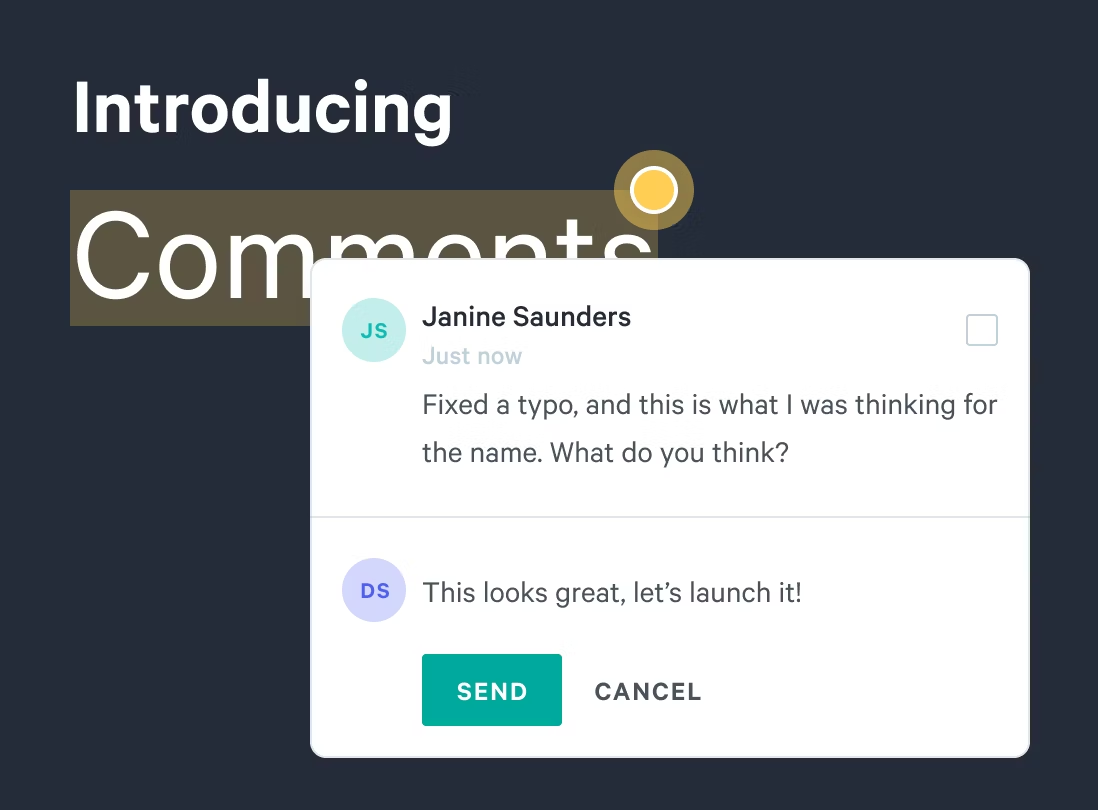
- Introducing Comments: A step towards better collaboration. With Qwilr, your team can work in one spot to refine pitches and add details to important client documents. Sharing feedback internally is the best way to make sure your team is completely aligned—and we’ve now made it faster to do with comments. Note: We’re rolling out this feature in waves to customers over the next few weeks as we make more improvements. You'll be notified once it hits your account.
Here's what you can do:
- 1.Leave comments on text by clicking the ‘post comment’ button in the toolbar.
- 2.Get viewing information and see who's currently viewing a page. Look out for the initials now appearing in the top right corner of your page.
- 3.Edit your comment by clicking the options menu and then ‘edit’ and delete your comment by clicking ‘delete’
- 4.Anyone can resolve or reply to your comment. Click the yellow marker to open a thread to access these actions.
- 5.Resolve a comment by checking the ‘Mark as resolved’ box. You can also unresolve a comment to reopen the thread by checking the same box.
- 6.Receive email notifications for all updates, including any replies and resolved comments.
- We've made it easier to add and remove seats from your account under your 'Manage Team' settings page.
- Adds slide-in transition for comment submission
- Changes to the hover/selected resolved comment marker state
- Added the Shift-Enter keyboard shortcut to submit a comment
- Fixed old project card error when the project had been moved across accounts
- Improving search on Share page to be case insensitive
- Fixed credit card summary not showing in the audit trail overlay
- Fixed Google fonts not loading on Brand Setup page
- Bug fix for Quote Line Items which was preventing the toolbar from showing up when highlighting text in the line item description
August 2019
— speedy shortcuts to make editing faster and more intuitive ⚡
- Paste images directly into your pages. Try copying and pasting an image from your web browser or desktop files.
- Explore the new options in your quick-add menu. Type "+" to bring up your menu in a new line or tap the "+" icon to add inline images, videos, maps, and more. Learn more →

- Our Salesforce integration now supports Communities. With Salesforce Communities, partners who view your Salesforce portal pages can use the Qwilr widget to build their own pages. Learn more →
- Added a placeholder image for videos in PDF view
- Inline content adder now has a small border
- Block Styles now generates slightly faster
- Updated plan and seat changes when starting or upgrading a subscription
- Some UI updates on the Zapier integration page
- Fixed table copying and pasting
- Fixed quote section description not updating when section is moved
- The inline content adder now operates better with centered content
- Fixed collaborative editing bug
- Fixed the alignment of the price column in the Quote Block on PDFs
- Fixed an IE bug which was preventing the Accept block button from rendering
- Fixed Maps link text styling
- Hide placeholder on quote line items if the value is non-empty
- Fixed table styling
July 2019
— some fun additions to the way you style your pages ✨
- Add beautiful animations to your blocks in a few clicks. Perfect for presentations and proposals, and impressing clients with your ideas.
- Try out these keyboard shortcuts # and ## when changing to Heading 1 and Heading 2.
- You've always been able to add emojis using your Mac or PC shortcuts, but we'll now convert some popular ones to make it faster for you to add them.
- Released our new Brand Editor, allowing you to see your brand at a glance and add more colors to your pallete.
- Notice an update to your navigation bar when editing pages? It's clearer and easier to read. We've also added the Accept button in there, so it's faster for your clients to sign the dotted line.
- Fixed some PDF formatting issues for tables and lists styling issues.
- Fixed Tokens Template tagger dropdown selection
- Fixed item and quantity columns being hidden by default on existing quote blocks.
- Allow undoing of lists added through text shortcuts.
- Add block padding when screen size is small.
- Fixed opening of disabled projects.
- Restoring ordered lists font size back to how they were previously.
- Clicking on the title in HubSpot should take the user to the project view.
- Aligned radio buttons to the left.
- Update template flow styling.
June 2019
— some extra styling additions so you can match your brand style 🎨
- Whether you're asking clients to confirm, buy, reserve, or book, you can now directly edit your Accept Button with text that's relevant to your sell.
- Customize your lists. links, and pull quotes with different styles and your brand colors.
- Style your tables and change your row color and border styles to create tables that work for different types of content.
- All new signups will be able to use Tokens alongside Salesforce or HubSpot.
- Grouped contextual styles when they share the same color
- Fix custom forms being usable on Pro
- Fix bug on updating styles where it would show a fail even if it had succeeded
- Fix edge case in Block Styles page conversion
- Remove silver as an option for Splash Block and add quote section grey color
- Fix default grey on quote section appearing as brand
- Fix link widget to be visible inside a table
- Block fold section now has the background color of the block
- Fix block CSS editor losing focus while typing
- Limit the number of brand colors in the new Brand Editor
- Fix explainer in the teams page
- Add new block level styling for the Embed Block
- Fix Embed Block failures on style conversion
May 2019
— introducing the biggest change to the way you customize blocks and pages 🌈
- Block Styles is here 🎨 We're starting the roll out for our all new styling customization options. Read more →
- Allow for multi-line description in CSV upload
- Remove automatic industry filter when visiting the Template Library
- Using description and discount fields from Salesforce pricebooks
- Add Style Shortcuts to the Video Blocks
- Rename block spacing options and blend fill types on Splash
- Fix name issue in combined post-signup data collection screen
- Fix PDF styling issue page number, font alignment, font color
- Fix Block options disappearing on Chrome
- Fix extra padding being added to foldable blocks
- Only convert account styles once
- Guarantee style menus appear on top when editing a saved block
- Fix some wild copy on Text Shortcut description
- Fix blend mode switch on white tint
April 2019
— improved search and the first steps for Block Styles 🔎
- New users will automatically be added to the Block Styles beta, giving them powerful styling controls.
- Search is now more powerful so you can find exactly what you're looking for.
- Changed button text when you're creating a new page from “Start from scratch” to “Blank page”.
- Added some new stock videos to your add to your pages.
- Added PDF links to all acceptance emails.
- Fixed wider currency symbols overlapping with input text in quote line items.
- Fix block width on videos.
- Fix Splash Block custom backgrounds.
- Fixed the print formatter attempting to split the ‘Accept’ button over two pages when generating a PDF.
March 2019
— extra polish details to your acceptance flow 💳
- We introduced a referral program so you can invite your network and clients to Qwilr. Try it out →
- Every time a new accept is made in a multi-accept flow, a new email will be sent to both the acceptor and page owner.
- Updated the description and discount fields from Salesforce and Pricebooks.
- Allow for multi-line description in a CSV upload.
- Refreshed our in-app integration options and added more detail for how you can pair Qwilr with your existing tools.
- Protected your pages from unexpected changes and faulty saves by stopping users from editing a page if they open that page in another tab, browser, or computer.
- All data that auto-saves—except for block content—will now automatically retry the save up to 10 times if the save fails.
- Added a subtle transition for the borders of quote item inputs.
- Fixed 'Total discounts' label not adhearing to language overrides.
- Fixed custom domain setting being stuck on the checking spinner.
- Fixed Qwilr logo being really big in some iOS email clients.